Picture Maker
Crop and format photos to standard dimensions: 1x1, 2x2, and Passport size. Includes advanced background removal with clothing preservation.
🔒 Privacy & Security Notice (Transient Processing)
User privacy is important. Files uploaded to this website are processed only for the requested task and are not intended for permanent storage. The platform does not maintain copies of uploaded files, generated documents, images, or converted outputs after processing.
Our focus is on accessibility and convenience, ensuring you can work securely on any device with no account registration or software installation. Please avoid uploading highly confidential or classified documents unless permitted by statutory or agency policies.
Applying for Government or Professional Board Exams?
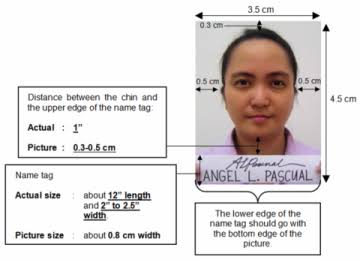
Most examinations (like CSE, LET, BFP, BJMP, and PNP) require a compliant ID photo with specific dimensions and a printed name tag.
1. Photo Source & Crop
Click to upload or drag & drop your photo
Supports JPG, JPEG, or PNG (High resolution recommended)
2. Size & Sizing Options
3. Background Removal
Tips for Better Results
For best background removal results, use a photo with a background color that is clearly different from your clothing, hair, or accessories.
Photos with strong contrast between the subject and the background usually produce cleaner and more accurate results.
This tool is provided free of charge, and while every effort is made to achieve good results, image quality may vary depending on lighting conditions, background color, and photo quality.
4. Civil Service Name Tag
5. E-Signature (Optional)
6. Word Export Settings
Live Preview
Applied Settings Summary
Related Resources
Exam Reviewer
Preparing for a government examination? Practice using our free Exam Reviewer for CSE, LET, BFP, BJMP, and PNP.
Start Practice Exam →Government Forms Hub
Need standard forms? Download BIR, CSC, GSIS, and PRC documents for your application dossier.
Search Government Forms →PDF Editor & Form Filler
Fill and customize application documents. Overlay text and place your signatures directly on PDFs.
Open PDF Editor →Agency Websites Directory
Access the official links and directories of Philippine government agencies for direct guidance.
View Agency Directory →Knowledge Hub
Read photo requirements guides, exam reviews, study planning tutorials, and compliance rules.
Visit Knowledge Hub →Help Center
Got questions on how to make 2x2 photos or signatures? Read detailed step-by-step tool tutorials.
View Help Guides →